
Your members are at the heart of Coacha. Whether you want to record basic details, set reminders, track skills, or more, the member profile system is designed to be both comprehensive and easy to use.
To find your member list and members you need to navigate over to People > Your members.
Here you will find all of the members in your club. Click 'VIEW PROFILE' to see the details of a specific member.
About the member profile
Outlined below are the 3 main areas of your member profile:
1) Action buttons
This area gives you a general control over the member account, such as saving your changes, deleting the profile or sending a request for the member/NOK to update their details.
2) Member details
Here you will find the member’s personal details. This is where you can enter or review their information. Parent or next of kin details are recorded separately in section 3.
Uploading a photo
You can also manage your member's photo from this page. To add a picture to a member profile, click the blue button next to the image icon and select a file from your computer.
3) The member Tabs
This area has a series of tabs covering all of the information you hold on the member. From parent details to payments, anything you need to find out about a member you can find here.
The Important Info
The first tab on a member profile holds their most important information. And for children, this is where their parents details will be entered, in the Next of Kin (NOK) section. You can enter two different parents into this section as well as allowing for the parents to log in and control the child member's data.
VERY IMPORTANT PLEASE NOTE: The parents details should only be used in the NOK, and not the member section (1) above.
This area also holds the member's address and list any 'Member Groups' they are a part of, helping you to add this member to the right group quickly and easily.
Additional Info
If you have any custom information on members, for instance on your club sign up form, this will be found in the additional information tab.
You will also have access to Coacha's innovative 'Member Skills' system on this tab.
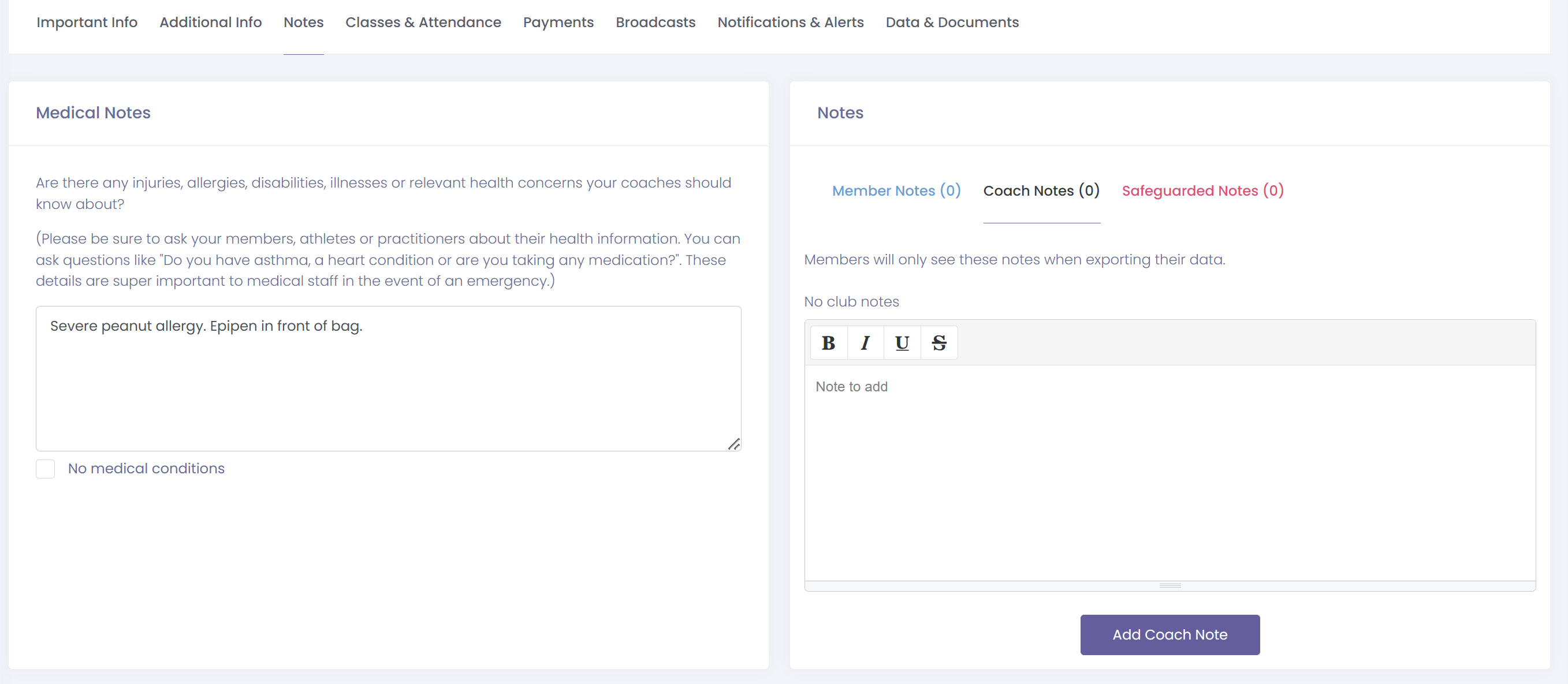
Member Notes
Notes are a flexible way to keep track of important information. You can choose to make notes visible to the member, or keep them private as safeguarding notes that are only accessible to authorised staff.
Medical Notes - This is the section where you can record any medical information about the member. This is also where any medical notes added to your club sign up form by the member when they joined your club are stored.
Notes - This area allows you to record various notes about the member, some for your member themselves to see, and others for your coaching team. More info on the different types of member notes can be found here: Adding notes and documents to a member profile
Attendance
You can navigate to the Classes & Attendance tab to view individual attendance statistics for each member. This section also allows you to manage the classes a member is assigned to, making it a useful area for anything related to attendance.
If you add a member to a class from this tab, they will be automatically included in all future sessions. This removes the need for them to book each class individually, saving time for both you and your members.
Viewing Payment History
The Payments tab gives you a full overview of a member’s financial activity. Here you can view payment history, check any outstanding balances, and manage payment requests.
Coacha makes it easy for you to see all outstanding payments for each member, and highlights the overall amount owed on each account.
You can also take action directly from this section, such as chasing unpaid amounts or voiding payment requests where needed.
Broadcasts
The Broadcasts tab allows you to view all communications sent to an individual member. This can be especially helpful tool if a member or parent is claiming to have not been sent something!
From here, you can quickly check the details and status of each broadcast sent to them.
Create Reminders
The Notifications and Alerts section allows you to create custom reminders and alerts for each member. This is useful if you need to stay on top of specific tasks or important events.
For example, you can set reminders for a member’s birthday, be notified when they reach a certain number of attendances, or prompt a follow-up on a medical condition. This flexible section gives you full control over how you manage and track important member-related information.
Adding Documents/GDPR Consent
Finally, there will always be some legal obligations to maintain when running any organisation. This section shows you the status of the documents and what the member has agreed to.
GDPR consent also displays here. You can tick/untick as appropriate – although the first two options must be selected for the member’s data to be stored in your club.
*Please note – these preferences can initially be set by the member on the member signup form when they join your club. They can also be updated at any time by the member themselves in the Coacha Member Portal or through the Coacha Apps.
Need help?
If you need any help with this process, please contact the support team at support@coacha.co.uk.
Thank you
Coacha Team
Comments
0 comments
Article is closed for comments.